Documents and Files
📍 Find this in the app: Admin Panel → Sales Horses → open a horse → Documents tab (
/admin/horses/:id/documents)
Every horse has its own secure vault where you can upload photos, videos, and private documents. This guide explains how to manage these files.
1. Adding Files (Create)
To add a file, open the horse's profile and go to the Documents or Images tab.
Public Images
These are photos that will be shown on the public website to potential buyers.
- How to add: Click "Upload Image" and select a picture from your computer.
- Limits: The picture cannot be larger than 10 Megabytes (MB). It must be a standard image file (like a .jpg or .png).
Private Document Vault
These are sensitive files like vet reports or ownership papers that only your internal staff and admins should see.
- How to add: Go to the private vault section and click "Upload Document".
- Limits: Each file can be at most 5 Megabytes (MB).
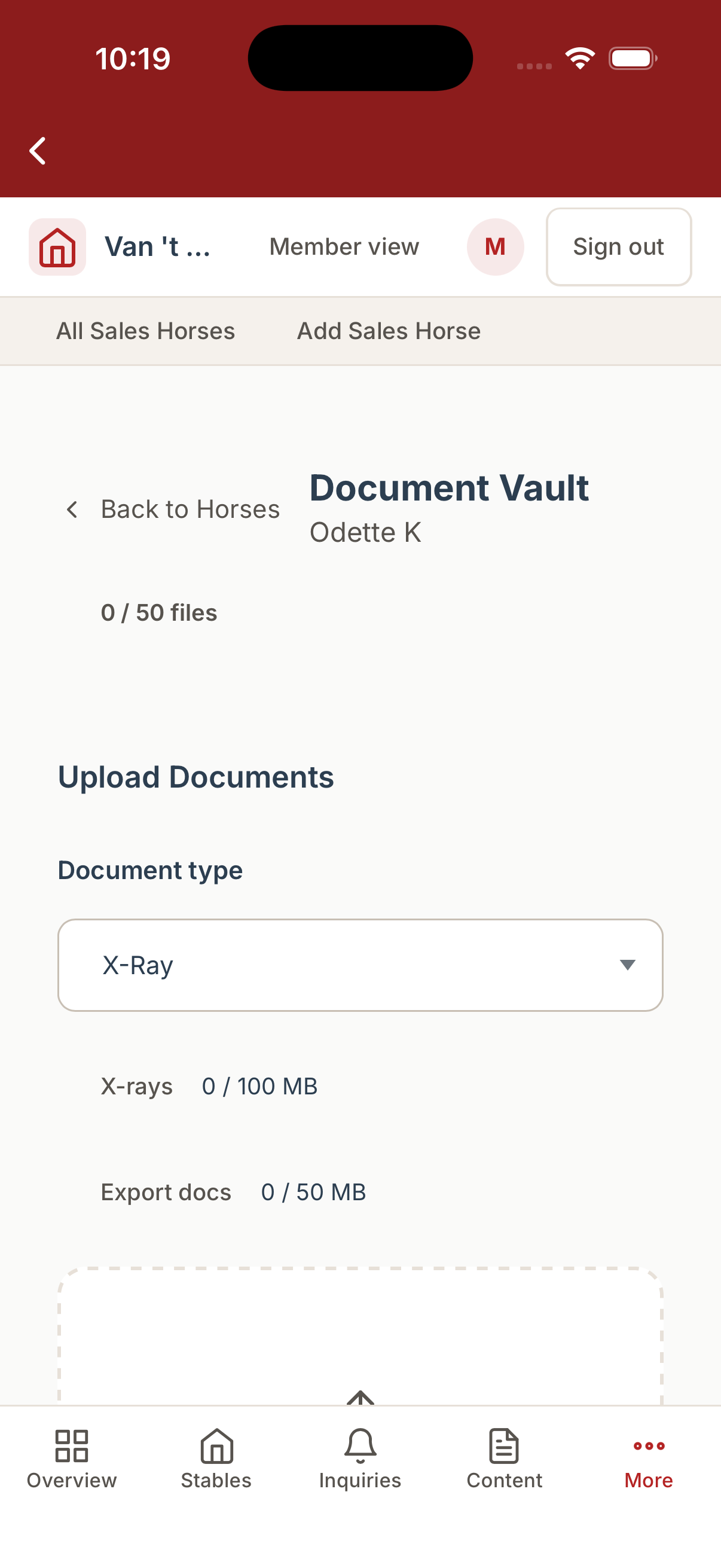
Sales Vault (X-rays & Export Certificates)
For horses listed for sale, you can upload clinical and export documentation in the Sales Vault. Files are organised into two categories:
- X-ray / Radiograph (
XRAY): scan images from pre-purchase examinations. Aggregate limit: 100 MB per horse. - Export Certificate (
EXPORT_CERT): official certificates, passport copies, and authority documents required for international sales. Aggregate limit: 50 MB per horse.
Both categories share the same per-file cap of 5 MB and are only accessible to admins and staff. Expiry dates can be set on Export Certificates; the system tracks upcoming renewals and includes them in the daily admin digest when they are approaching.
Member Documents (Owner Updates)
These are files specifically meant for the horse's owner (the "Member") to download. For example, a monthly training report.
- How to add: Upload to the Member Documents section.
- Limits: PDF files only. Each PDF can be at most 5 Megabytes (MB). A single horse can only have up to 50 Megabytes (MB) and 50 files of member documents in total.
- Important Rule: You can only add Member Documents if the horse's In Training box is checked.
2. Viewing and Downloading Files (Read)
- Public Images: Anyone visiting the website can see these.
- Private Documents: Only authorized staff logged into the dashboard can click and view these. When you click to view one, the system creates a secure, temporary link that expires after 1 hour to keep the file safe.
- Member Documents: The horse's owner can log into their portal and download these PDFs. These downloads also use secure 1-hour links.
3. Changing Files (Update)
Files themselves cannot be "edited" directly in the system. If you upload a vet report and realize it has a typo, you must fix the typo on your computer, delete the old file from the system, and upload the new, corrected file.
4. Removing Files (Delete)
You can delete files whenever you want to free up space or remove outdated information.
- Manual Deletion: Go to the file in the horse's profile and click the "Delete" button (often represented by a trash can icon). The file is immediately removed from storage.
- Automated Deletion: The system also cleans up automatically. For example:
- If you try to upload a Member Document that pushes the total over 50 MB, the system will automatically delete the new file and warn you.
- If you uncheck the In Training box on a horse, the system may automatically restrict or delete the owner's documents because the horse is no longer actively training.