Task Management
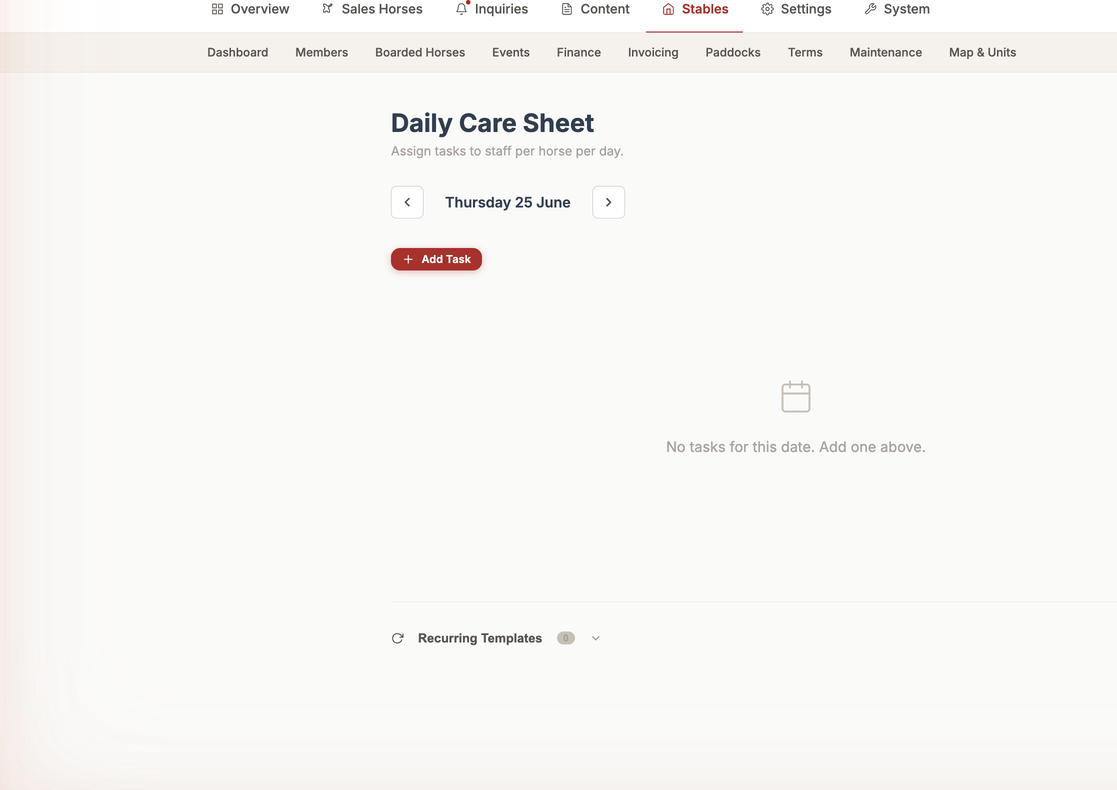
📍 Find this in the app: Admin Panel → Stables → Boarded Horses → Daily Sheet (
/admin/stables/daily-sheet) · Staff View → Today's Tasks (/staff/tasks)
The Task Management system is how your staff tracks the daily chores and care for the horses.
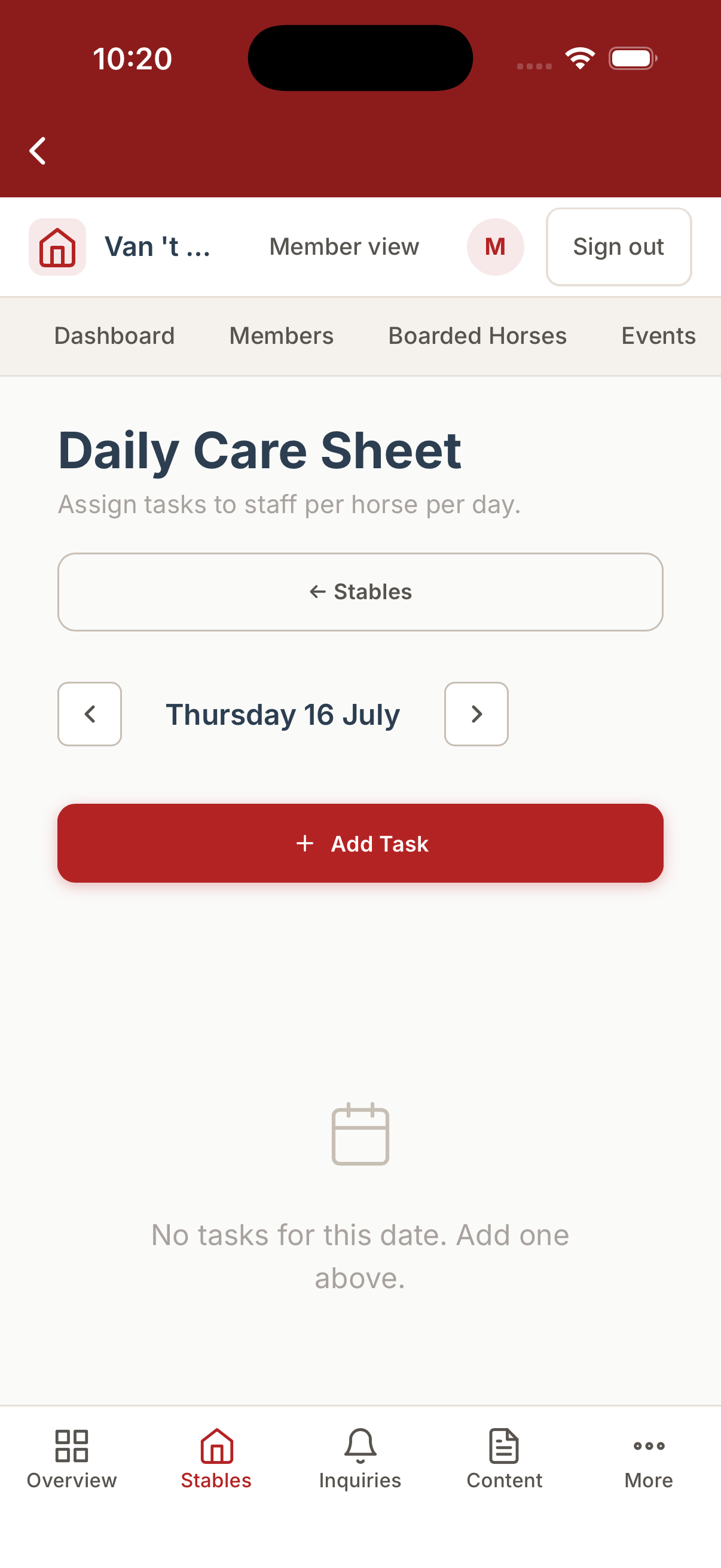
The Daily Care Sheet in the native mobile app:
1. Creating Tasks (Create)
You can tell the system what needs to be done for a horse on a specific day.
To create a task, go to the Daily Sheet or the horse's profile and click "Add Task".
Here is what each field means:
- Task Type: What kind of chore is it? You must pick from a specific list:
FEED(giving food),LUNGE(exercising on a line),TRAIN(riding or training),FARRIER(hoof care),VET(doctor visit),TURNOUT(letting the horse out in the field), orOTHER(anything else). - Assigned To: Which staff member is responsible for doing this? You select their name from your staff list.
- Scheduled Time: What time of day should this happen? (e.g., 8:00 AM).
- Notes: Any special instructions. For example, "Use the blue blanket for turnout."
Recurring Tasks
If a task happens every day or every week (like feeding), you don't have to create it manually every single time. You can set up a Recurring Task Template. You select the days of the week it should happen, and the system will automatically create the task for you every morning.
2. Viewing Tasks (Read)
Staff members can open the dashboard to see their "Daily Sheet". This is a list of all the tasks assigned to them for that day. They can see which horse needs attention, what time it's scheduled for, and any special notes you left for them.
3. Updating Tasks (Update)
If plans change, you can click on a scheduled task before it is completed to update it. You can change who is assigned to do it, alter the scheduled time, or add more details to the notes. Once saved, the staff member's Daily Sheet will update with the new information.
4. Completing and Deleting Tasks (Delete/Complete)
Completing a Task
When a staff member finishes the chore, they simply click the "Complete" checkbox next to the task on their Daily Sheet.
- What happens behind the scenes?: The system stamps the exact date and time the button was clicked. This proves exactly when the horse was fed or trained, keeping a perfect historical record.
Bulk Completion
If a staff member just finished feeding 10 horses, they don't have to click "Complete" 10 separate times.
They can select all 10 horses from a list and use the Bulk Log Task feature. They select the FEED task type, click submit, and the system marks the feeding as complete for all 10 horses at the exact same time.
Deleting a Task
If a task was created by mistake (for example, scheduling a training session on the horse's day off), you can click the "Delete" button on the task. It will be removed from the Daily Sheet entirely.
5. The Activity Timeline (Care History)
Every completed task quietly builds a per-horse activity timeline - a running record of what was actually done to each horse and when. This happens for all horses in the stable, not just those in training, so nothing falls through the cracks.
Anyone with access to a horse can open its last 7 days of activity:
- Staff see it via the Activity button on the Horses screen (see Staff View).
- Admins see it on the horse's records.
- Owners see it on their own horse.
Because every team member's work feeds the same timeline, the whole yard shares one truthful picture of a horse's recent care. Two people can't accidentally train or turn out the same horse twice, and the timeline gives an early warning when a horse's weekly training load looks high - a simple guard against overtraining.
Tip: notes you add to a task ("used the blue blanket", "slightly stiff on the left") travel with it onto the timeline, so context isn't lost.