Paddock Reservations
📍 Find this in the app: Admin Panel → Stables → Riding Paddocks (
/admin/stables/paddocks) · Member Portal → Riding Paddocks (/members/paddocks) · Staff View → Paddocks Schedule (/staff/paddocks)
This system allows you and your members to book time slots in the riding arenas, paddocks, or lunging circles, ensuring that areas do not get overcrowded.
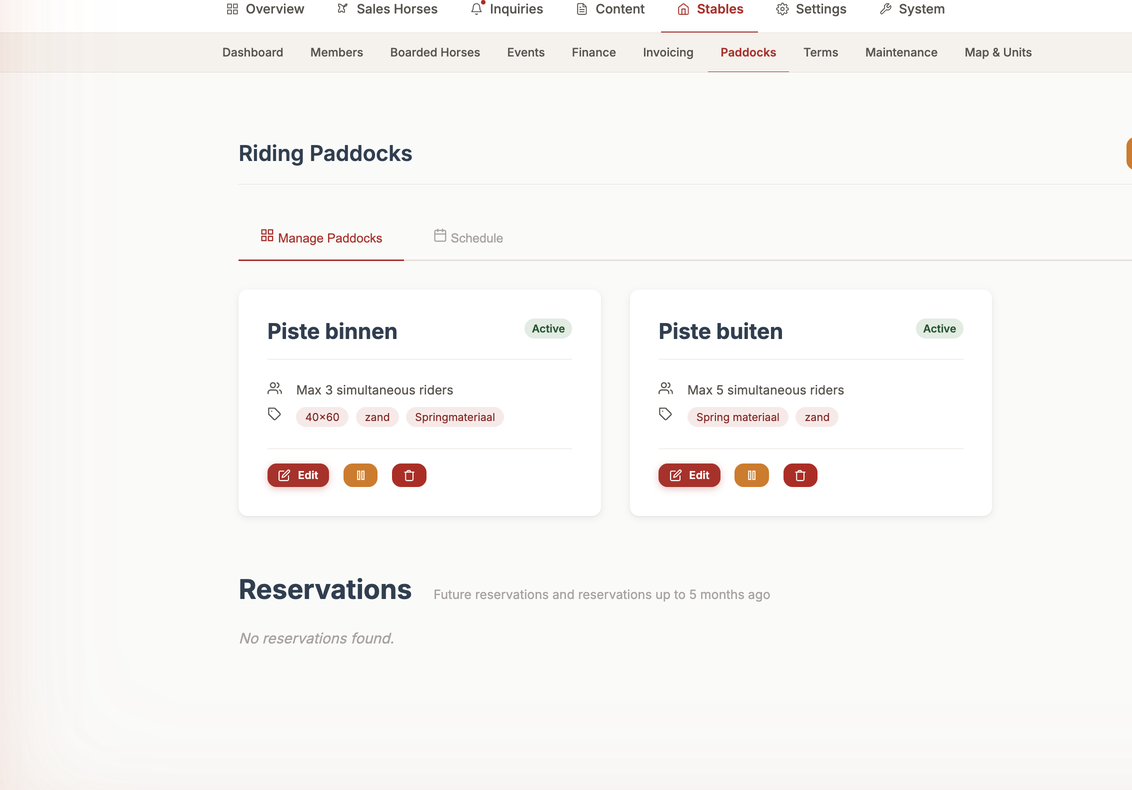
1. Creating a Paddock (Create)
First, the Admin must create the physical riding spaces in the system.
- Name: What the area is called (e.g., "Main Indoor Arena", "Outdoor Dressage Ring").
- Max Simultaneous Riders: The maximum number of people allowed to book this space at the exact same time. If set to 1, it becomes a private booking. If set to 5, five different people can book the same hour.
- Properties: A list of features the paddock has (e.g., "Lights", "Covered", "Mirrors").
- Is Active: Check this to make it available for booking.
2. Making a Reservation (Create)
Members and Staff can book time in an active paddock.
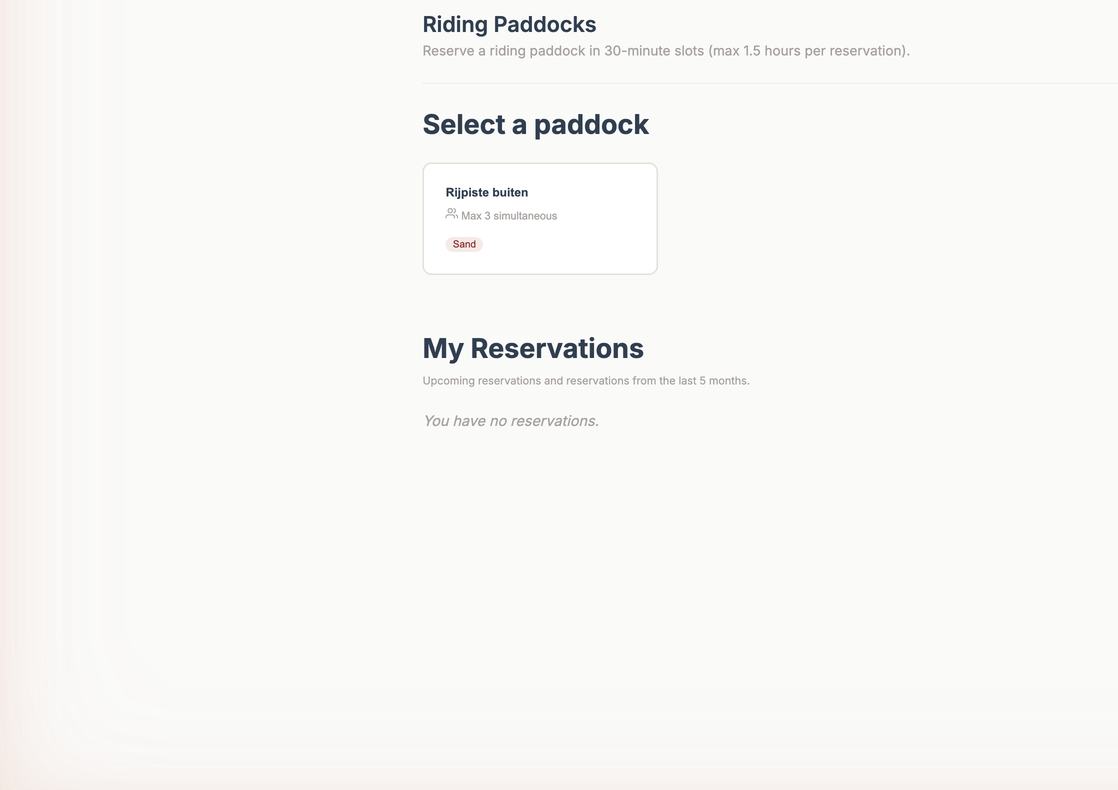
- Paddock: Select the arena they want to use.
- Member: Who is making the reservation.
- Start Time & End Time: The exact date and hours they want to ride.
If the arena has already reached its "Max Simultaneous Riders" for that specific hour, the system will prevent the booking and tell the user the arena is full.
Paddock Blocks (Admin Maintenance)
If an Admin needs to close an arena (for example, to drag the footing or repair a fence), they can create a Paddock Block.
- Start & End Time: When the arena is closed.
- Reason: Why it is closed (e.g., "Tractor maintenance"). During a Block, no member can make a reservation.
3. Viewing the Schedule (Read)
There is a calendar view where anyone can look at a specific day and see exactly who is riding in which arena. This helps members plan their visits to the barn when it is quietest.
4. Changing a Reservation (Update)
If a member is running late, they can click on their reservation in the calendar and edit the Start Time and End Time, pushing their ride back an hour (assuming the arena isn't full).
5. Canceling a Reservation (Delete)
If a member decides not to ride, they simply click their reservation on the calendar and click "Delete" or "Cancel". This frees up the slot immediately so someone else can book it.