Stable Members
📍 Find this in the app: Admin Panel → Stables → Members (
/admin/stables/members)
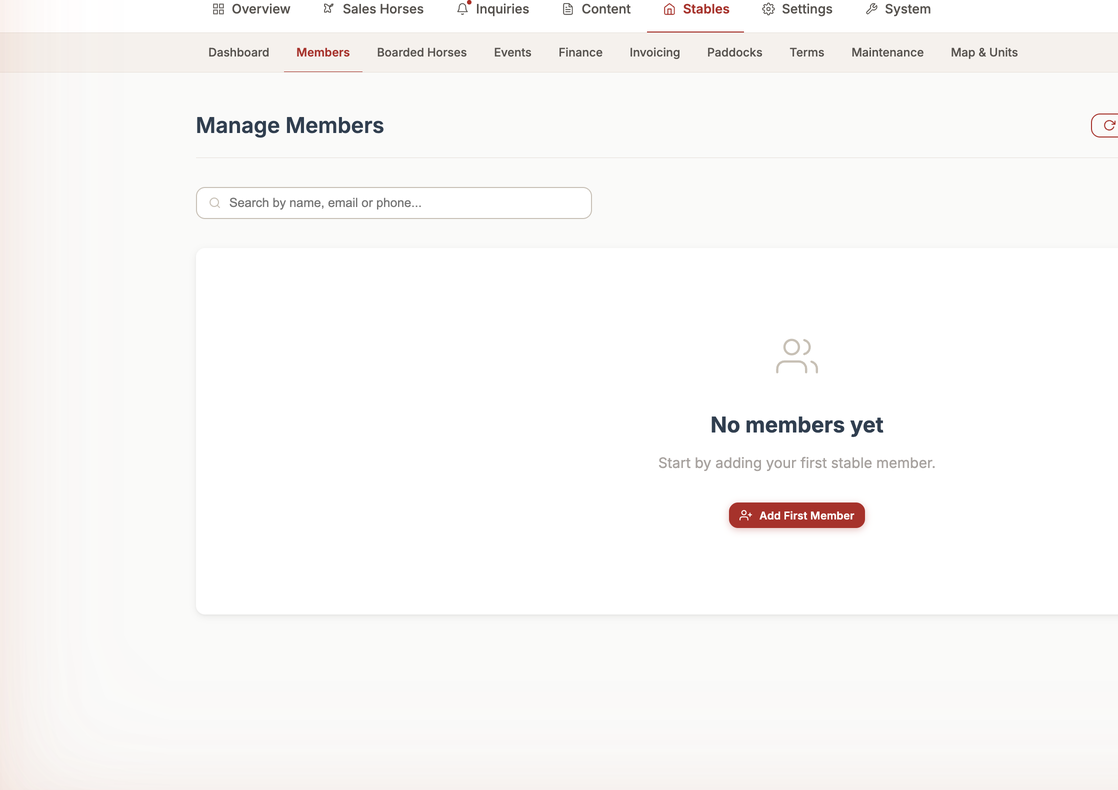
The Members section allows you to manage everyone who interacts with your stable, including clients (horse owners), staff, and other administrators.
1. Adding a Member (Create)
To invite someone to your stable's system, go to the Members dashboard and click "Add Member".
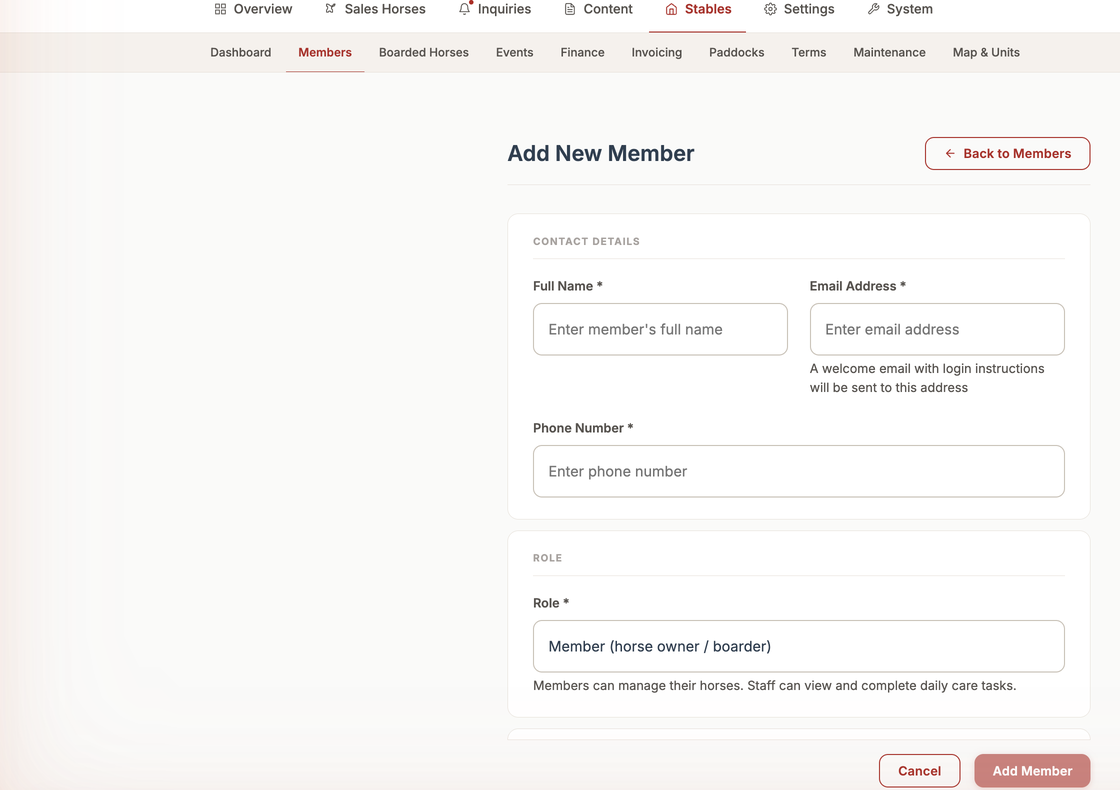
Here is what each field means:
- Name: The full name of the person.
- Email: Their email address. They will use this to log into the system.
- Phone: A contact phone number.
- Role: What kind of access they should have — Member (a standard client who only sees their own horses and can book paddocks) or Staff (an employee who can see the Daily Sheet, log tasks, and manage stable operations).
- Admin access (full control over everything, including adding horses, managing bills, and editing the public website) is a separate tier that can't be granted from this form — see the note below.
- Is Member: A simple checkbox to confirm they are an active client or participant at the stable.
- Is Active: A switch to turn their account on or off.
When you click "Save", the system creates their profile.
2. Viewing Members (Read)
You can see a list of all your members in the dashboard. Clicking on a specific person will show you their contact details and a list of any horses they currently own in the system.
3. Changing Member Details (Update)
If a member gets a new phone number, or you want to move someone between Member and Staff, you can easily change their profile.
- Click on the member in the list.
- Click "Edit".
- Update their email, phone, or switch their Role between Member and Staff.
- Click "Save". The changes take effect immediately.
Admin access: You cannot grant or remove Admin access from this screen. If the person you're editing is already an Admin, the Role field shows "Admin" as locked, read-only text instead of a dropdown — this is deliberate, so a routine edit (like fixing a phone number) can never accidentally demote an admin back to a regular member. To make someone an Admin, or to change an existing Admin's access, contact your Equidentity technical contact.
Deactivating a Member: If a client leaves the stable, you do not always want to delete them (as it deletes their history). Instead, you can uncheck the Is Active box. This revokes their ability to log in and hides them from active lists, while keeping their past records intact.
4. Removing a Member (Delete)
If someone was added by mistake, you can permanently delete them.
- Open the member's profile.
- Click "Delete".
- Confirm your choice. They will be completely erased from the stable's system.
🤖 Need help?
Remember that the AI Support Chatbot is available in the bottom corner of this (and every) admin screen. If you get stuck or have questions about how this page works, just click the chat bubble and ask!