Boarding Contracts
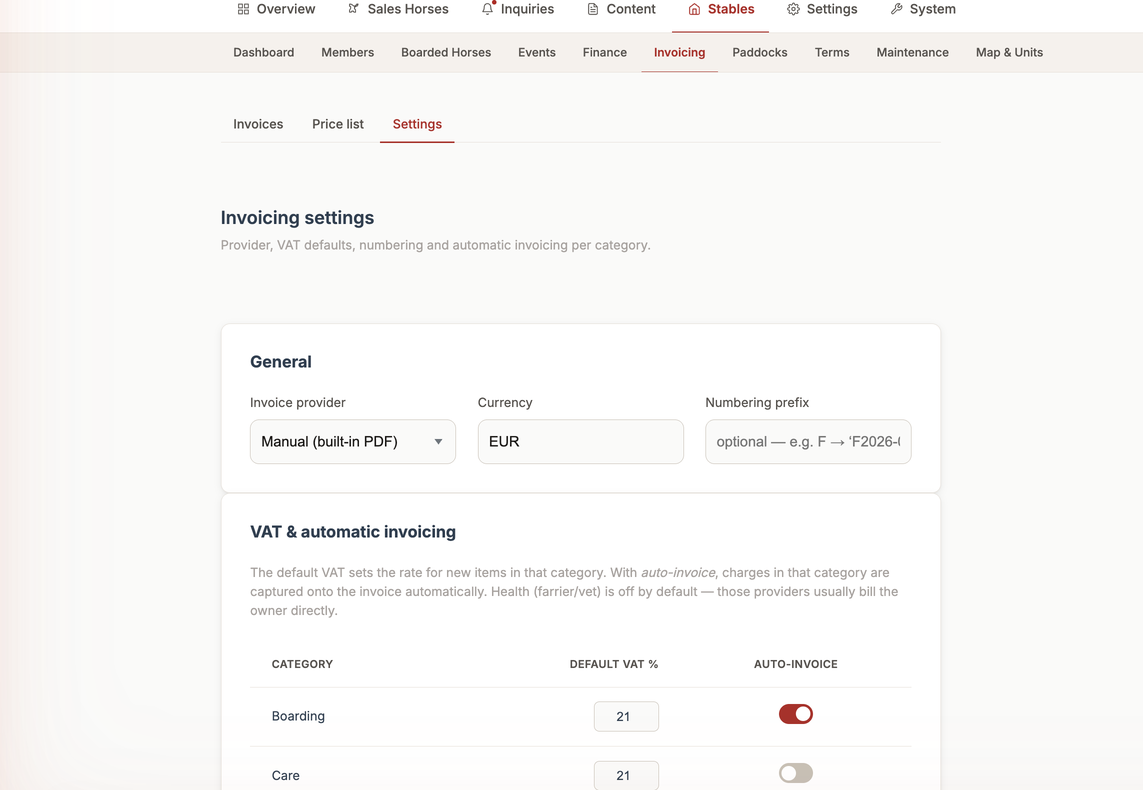
📍 Find this in the app: Admin Panel → Stables → Members → open a member → Boarding Contract (
/admin/stables/members/:id)
Boarding Contracts are part of Billing, a paid add-on on top of PRO (currently in alpha). If you don't see a Boarding Contract section on a member's page, Billing isn't enabled for your stable — see Feature Flags.
Boarding Contracts tell the system how much to charge a specific horse every single month automatically.
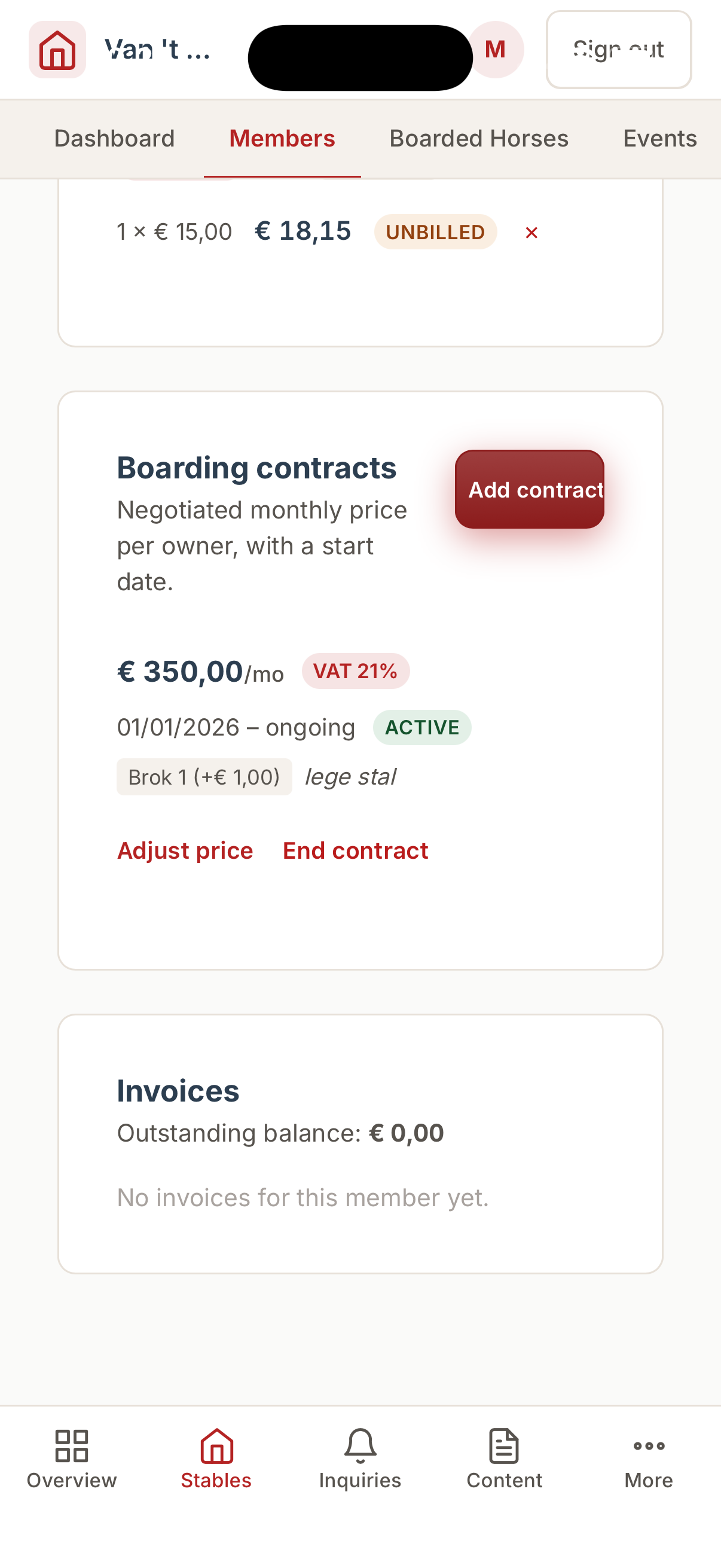
A member's boarding contract and invoices, viewed in the native mobile app:
1. Assigning a Contract (Create)
When a new horse arrives at your stable, you need to set up their billing. Click "New Contract".
Here is what each field means:
- Horse: Select the horse that is moving in.
- Start Date: The exact day the horse arrived. (If they arrive on the 15th of the month, the system will automatically calculate the prorated half-month price for you!)
- Service: Select the type of boarding from your Service Catalog (e.g., "Full Board").
- Override Price: If you are giving this specific client a special discount, you can type a custom price here that overrides the standard catalog price.
- Notes: Any private billing notes for your own records.
2. Viewing Active Contracts (Read)
You can view a list of all horses and their current monthly rates. This acts as a summary of your guaranteed monthly income.
3. Changing a Contract (Update)
If you raise a client's rent, or if a horse upgrades from "Pasture Board" to "Full Board":
- Click on the horse's contract.
- Click "Edit".
- Update the price or service type.
- Click "Save".
Important Note on History: When you update a price, the system keeps an "append-only history" in the background. This means the system remembers exactly what the price was last year, in case you ever need to reissue an old invoice.
4. Ending or Deleting a Contract (Delete)
When a horse leaves your stable, you do not simply delete their contract (otherwise they wouldn't get billed for their final days).
- Ending a Contract (Move-Out): You edit the contract and set an End Date. Just like move-ins, the system will automatically calculate their final prorated bill.
- Permanent Deletion: If you created a contract entirely by mistake, you can click "Delete" to permanently erase the contract as if it never existed.