Invoice Generation
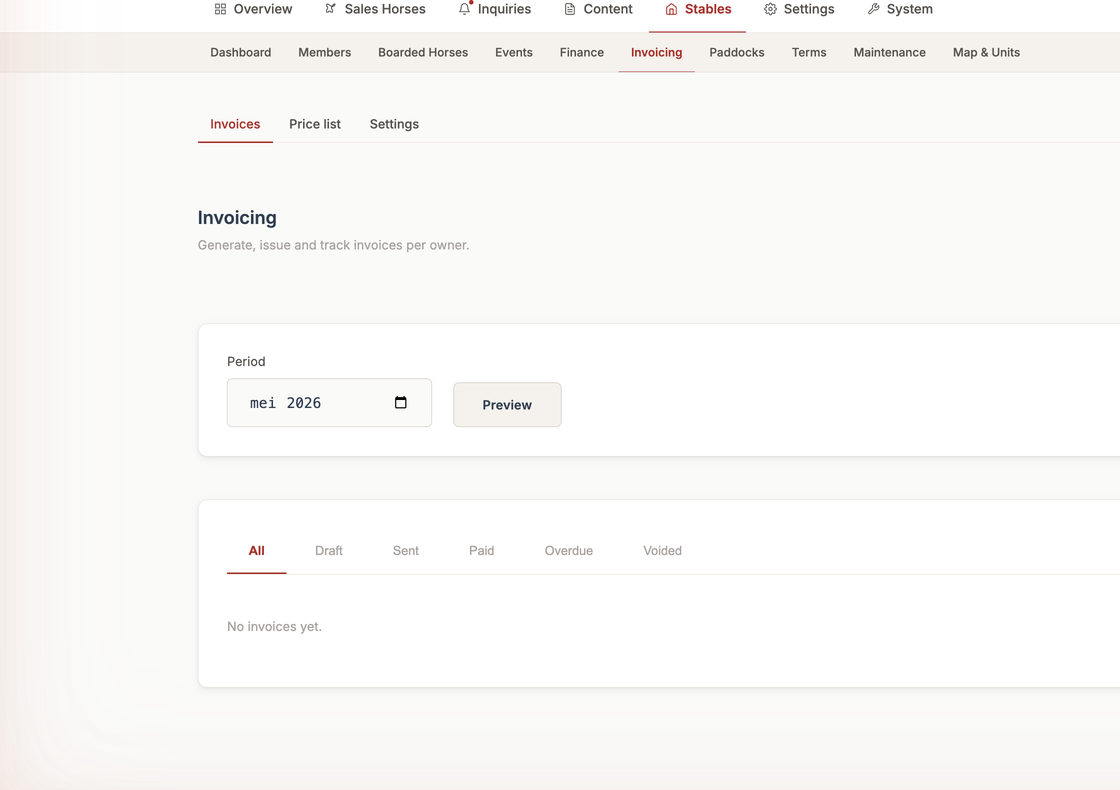
📍 Find this in the app: Admin Panel → Stables → Invoicing (
/admin/stables/billing)
Availability
Invoicing is in alpha and is a paid add-on at €10/month on top of PRO. Alpha users pay nothing extra for the first 3 months. Custom integrations beyond the built-in Billit connection are set up on request. See Feature Flags.
Instead of manually building invoices line-by-line, the system uses an automated consolidation approach.
1. Generating Invoices (Create)
You do not manually type out invoices. Instead, the system builds them for you.
- The Monthly Run (Automated): On the 1st of every month at 06:00 AM, the system wakes up and looks at the previous month. It gathers all prorated Boarding Contracts, all active Lease charges, and all the
unbilledmanual charges for each member, and sweeps them into a single consolidated Draft Invoice. Leasing a horse out is automatically billed the same way as boarding — you don't need to add anything manually once a lease exists. - Issuing (Manual Confirmation): Draft invoices are invisible to clients. When you review the draft and click Issue Invoice, the system finalizes it. It permanently assigns a highly secure, gap-free Legal Invoice Number (e.g., INV-2026-001) and generates the PDF document.
- Auto-Issue (Optional): If you'd rather not review every invoice by hand each month, an admin can turn on Auto-Issue in Billing Settings. With it on, the monthly run issues invoices itself instead of leaving them as drafts waiting for a click — useful once you trust the numbers and want one less manual step each month. It's off by default for every stable, so nothing changes unless you switch it on.
2. Viewing Invoices (Read)
In the Invoicing dashboard, you can view a list of all your invoices.
- You can filter the list by status to see which invoices are Draft, Sent, Paid, or Overdue.
- Clicking on an invoice lets you read all the line items, see the VAT breakdown, and download the actual PDF document.
3. Changing an Invoice (Update)
- Updating a Draft: While an invoice is still a Draft, you can edit it. You can manually add a last-minute discount line item, or change descriptions.
- Updating Status (Mark as Paid): Once an invoice is Issued, its line items are locked for legal reasons. However, you can update its status. When a client transfers money to your bank account, you click the invoice and click Mark as Paid. (Note: Automatic reconciliation with bank feeds is awaiting implementation).
4. Removing an Invoice (Delete)
- Deleting Drafts: If the automated run made a mistake, you can simply click "Delete" on a Draft invoice. It vanishes safely, and all the line items go back into the unbilled ledger.
- Issued Invoices Cannot Be Deleted: Once you click "Issue" and a legal number like INV-2026-001 is assigned, strict accounting rules prevent you from deleting it. If you made a mistake on an issued invoice, you must use a Credit Note (see next section).